A few years ago this Diagnose JDBC proxy connection article was really useful to point people to if they had an issue with JDBC/UCP connections in ORDS. Since then ORDS has moved to Java 11 so an update on the steps is long overdue…
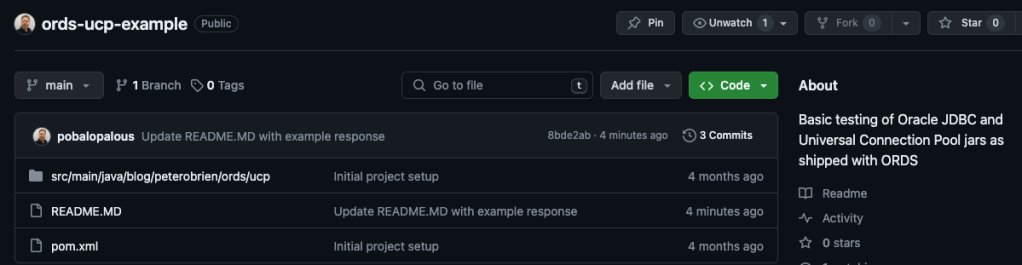
Simply clone the repository or download it as a zip file and follow the steps in the README.
This test could be used with the standard Oracle JDBC/UCP distributed jars but the original intention is use the jars that are distributed with ORDS. Your version of ORDS might be different so the README shows steps to find the exact jar names to use.
What you should see when the UCPProxyTest is successful
Earlier this year, as of ORDS 22.1.0, the minimum supported Java version moved to Java 11. The ORDS command line script finds the Java Runtime Environment on your machine based on path or JAVA_HOME environment variable and in the majority of cases that works out fine.
What do you do if you need to keep a different, perhaps older, Java Runtime Environment in the path? You might be using some other application or utility which expects a JRE which is incompatible with ORDS.
The simple answer is that the ORDS command line script does go looking for a JRE in the directory where you have extracted the ORDS distribution. If you have extracted ORDS to /opt/oracle/ords/22.2.0/ then the command line shell script goes looking in /opt/oracle/ords/22.2.0/jre/ for a Java Home.
Symbolic link makes it easy
The most straight forward way to provide this Java Runtime Environment home for ORDS to use is to define it using a symbolic link. That way you are not duplicating files and you can point to a new JRE version whenever suits.
… the version of Java used by ORDS in standalone mode, or any command for that matter, is locked in. The PATH could change, the JAVA_HOME could change, but this ORDS will use this specified JRE.
Java 17 used because that’s the JRE specified
That simple approach provides more options for running different Java applications which may have very specific version requirements.





 Peter's Random Topic Library